Turn a drawing, scan, or screenshot into a coloring page
Not every image is a photo. Drawings, scans, clip art, diagrams, screenshots, and logos convert differently from continuous-tone photographs — and usually need less tuning. This page covers settings by type, worked examples, and fixes when the first try looks wrong. For photographs of pets, places, or objects, see how to turn a photo into a coloring page.
There is no upload endpoint. Your image is converted in your browser tab and never sent to us.
How to convert an image into a coloring page
1. Choose the file
Open the converter and select "Choose an image", or drag a file onto the page. PNG, JPEG, and WebP work, up to 25 MB and 40 megapixels. You can also type a link into "Paste an image address" and select "Load image", although some websites block this — more on that below. SVG and PDF are not opened directly: export or screenshot them as PNG first.
2. Pick a style, detail, and line thickness
Style decides how lines are found. Sketch draws strokes where the picture is darker than its surroundings. Outline traces edges where brightness changes sharply. Our AI Model is a third option that also runs in your browser. Detail decides how much becomes lines. Line thickness decides how bold those lines print — "Thicker lines are easier for small hands to colour inside." Defaults are Sketch, High detail, and Thin lines. For non-photo inputs, the type cards below often point to Outline instead.
3. Check the preview
The preview shows how much of the page is ink. If a lot of the page is black, you'll see a "This page is quite dark" warning. Lower Detail or switch to Outline, then check again. Under Orientation, the converter also shows the art area in millimetres and the effective DPI at print size.
4. Choose your paper and print
Pick A4 or Letter under "Page size". Leave Orientation on Auto to follow the shape of your image, or choose Portrait or Landscape yourself. Then, under "Download as", pick PDF or PNG and select "Download PDF" or "Download PNG". If you'd rather print straight away, select "Print now". You can also open "Colour it in" for an optional on-screen coloring canvas.
Worked examples
Each example below is a real non-photo input converted with the converter's own code at the settings in the caption, with no retouching.
A house drawing: why graphics convert cleanly
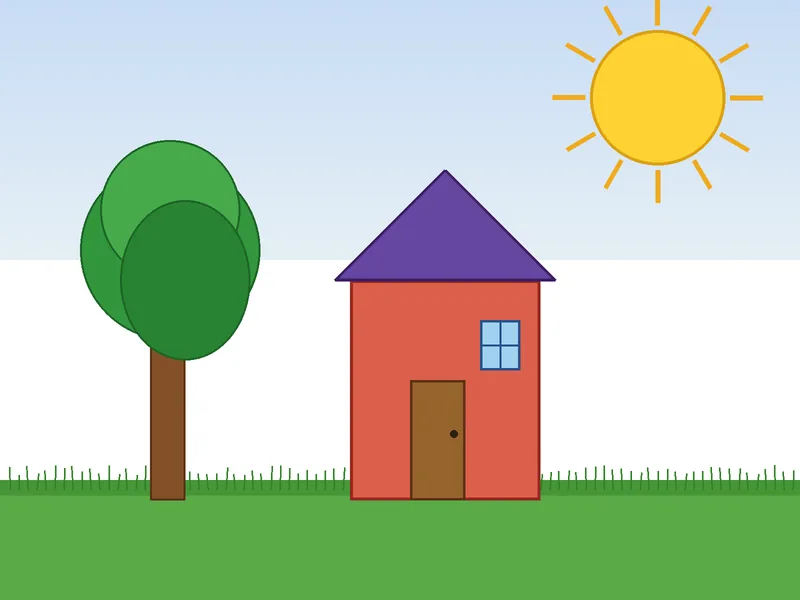
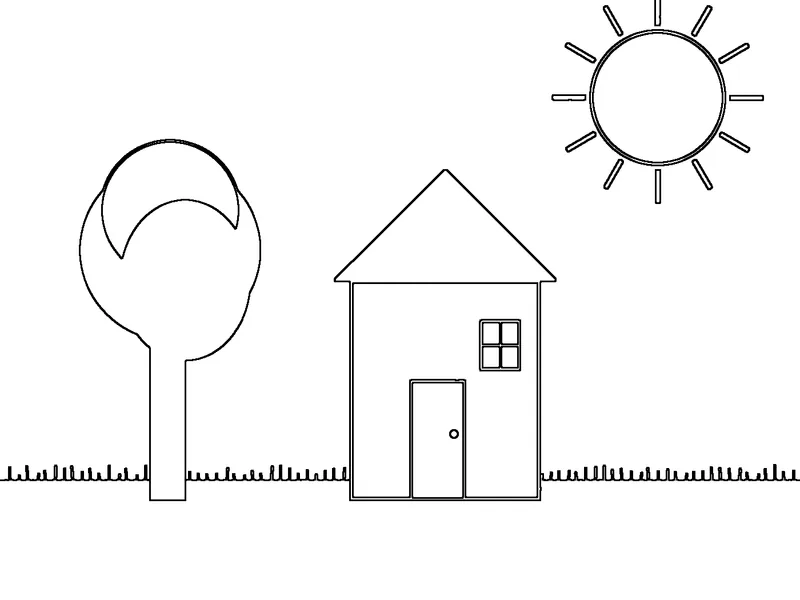
Look back at the house at the top of the page. Flat colour regions meet at hard edges, so Outline has little ambiguity about where a line belongs. High detail keeps the window cross and the sun rays; Medium lines leave shapes a child can fill. The same drawing at High detail with Thin lines drops to about 1% ink and looks too faint to colour comfortably.
Clip art: thick lines for flat shapes
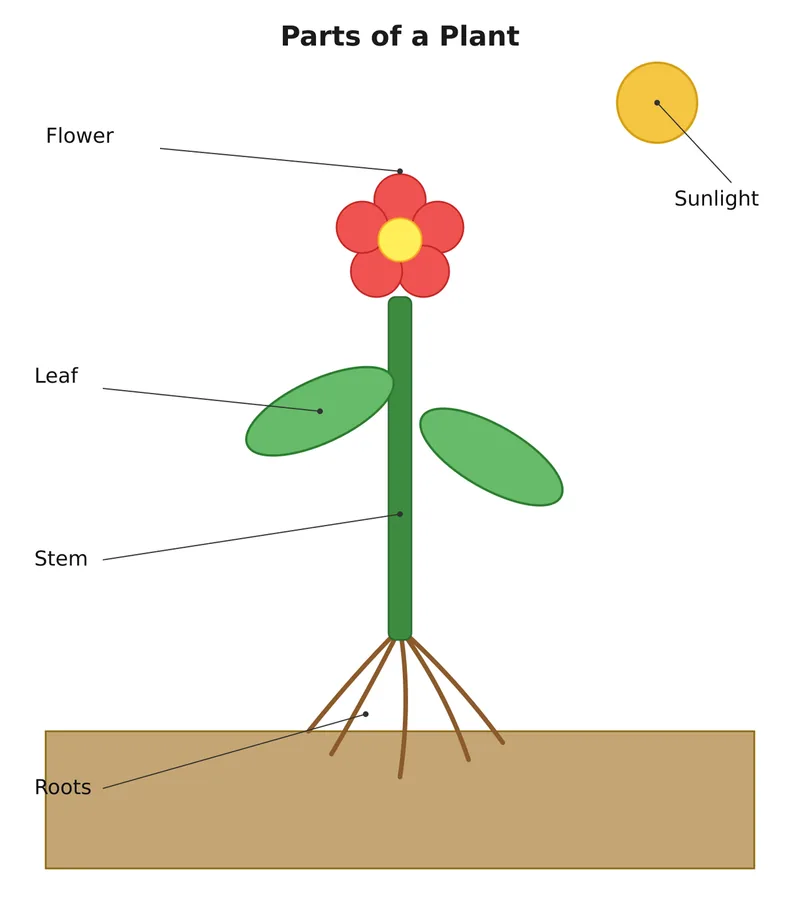
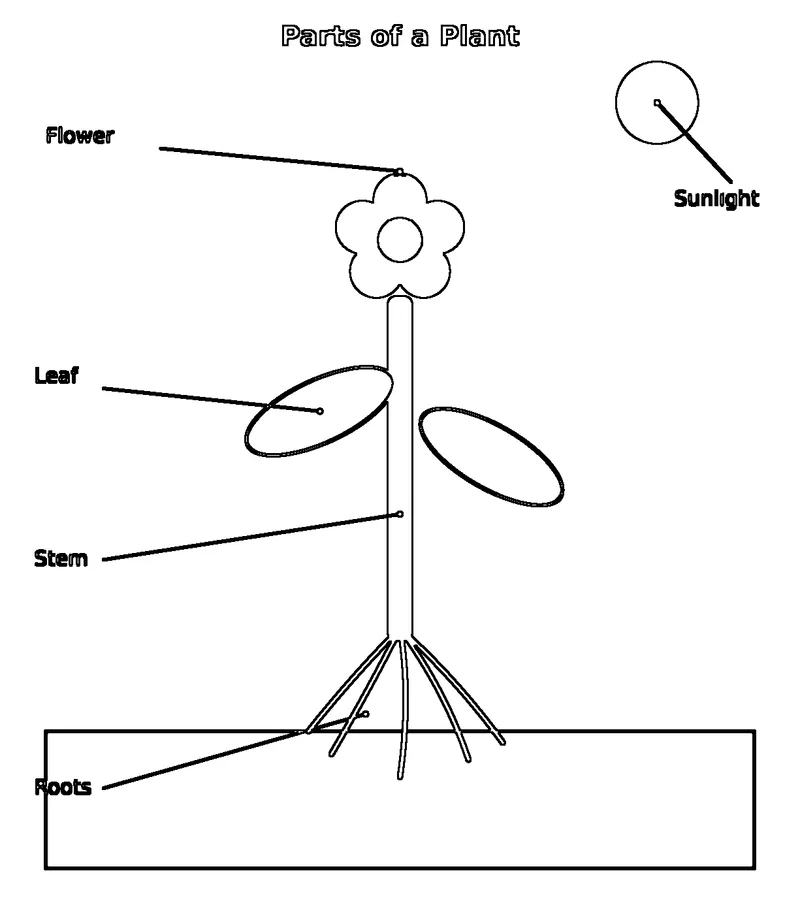
A plant diagram: keep the labels
A screenshot: crop the chrome first
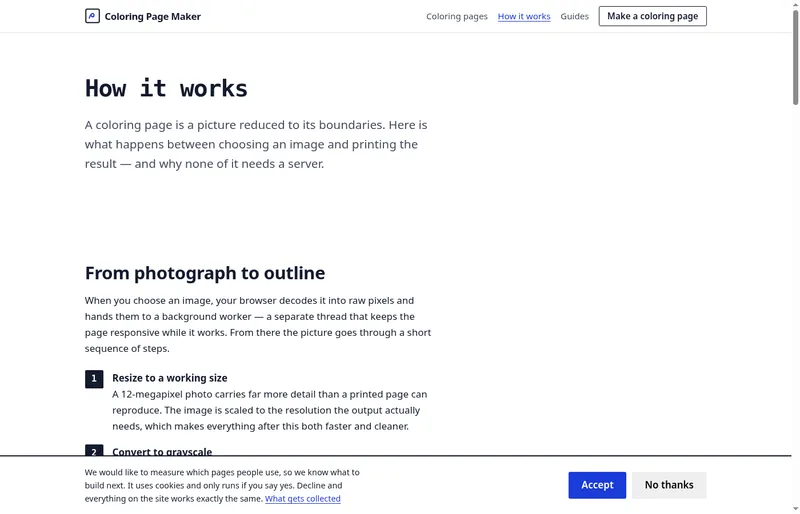
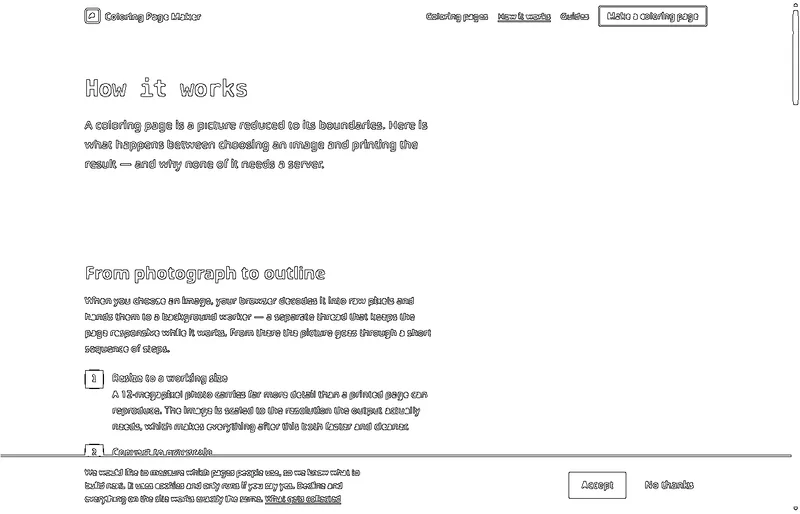
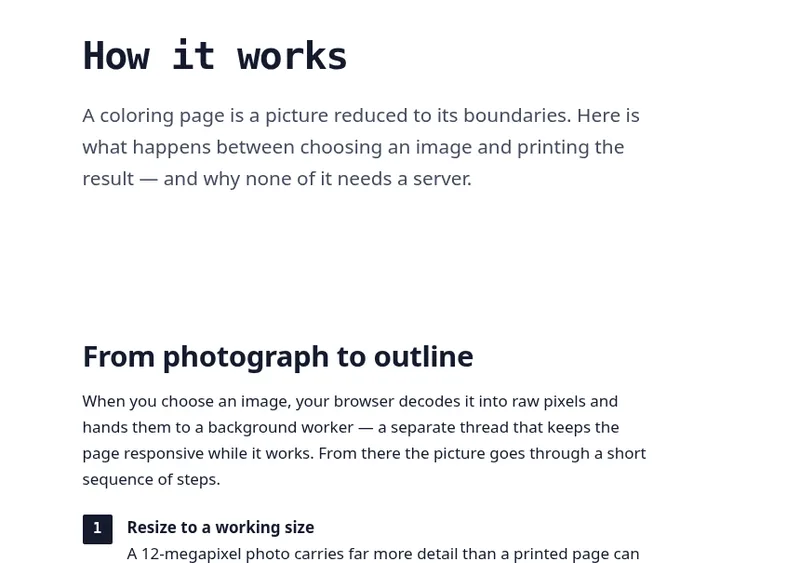
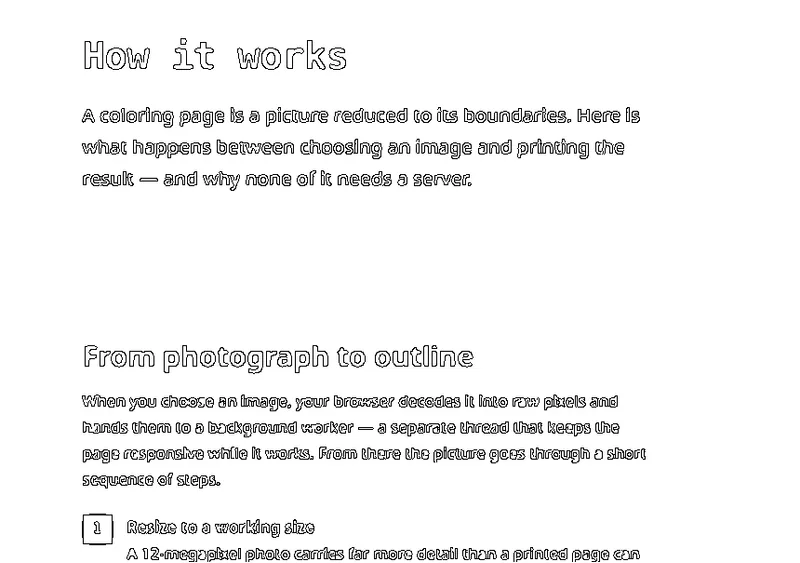
Text and interface chrome are already high contrast, so they trace cleanly — including parts you do not want. The full screenshot picks up the navigation and cookie banner; cropping to the article removes them. The converter cannot tell a toolbar from the subject.
Different images, different behaviour
The distinction that matters is how brightness is distributed. Photographs are continuous: brightness varies smoothly, and the job is to decide which variations count as boundaries. Graphics are the opposite — flat colour regions meeting at hard edges.
That is why graphics convert almost perfectly and photographs need tuning. When this is the wrong page: for a photograph of a pet, place, or object, use photo to coloring page instead.
-
Drawings and scans
Start at High detail with Outline, and Thin or Medium lines. Scanned pencil work converts into crisp ink lines. Photograph or scan the drawing in flat, even light rather than under a single lamp, which casts a gradient across the paper. Crop so the artwork fills the frame.
-
Clip art and illustrations
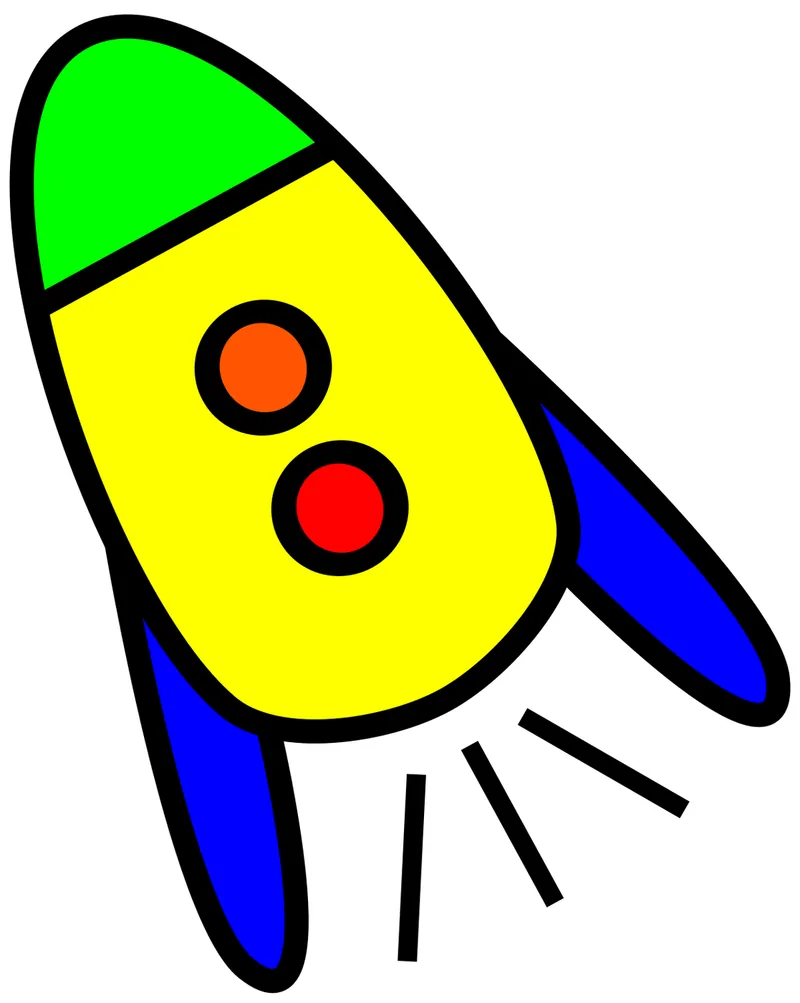
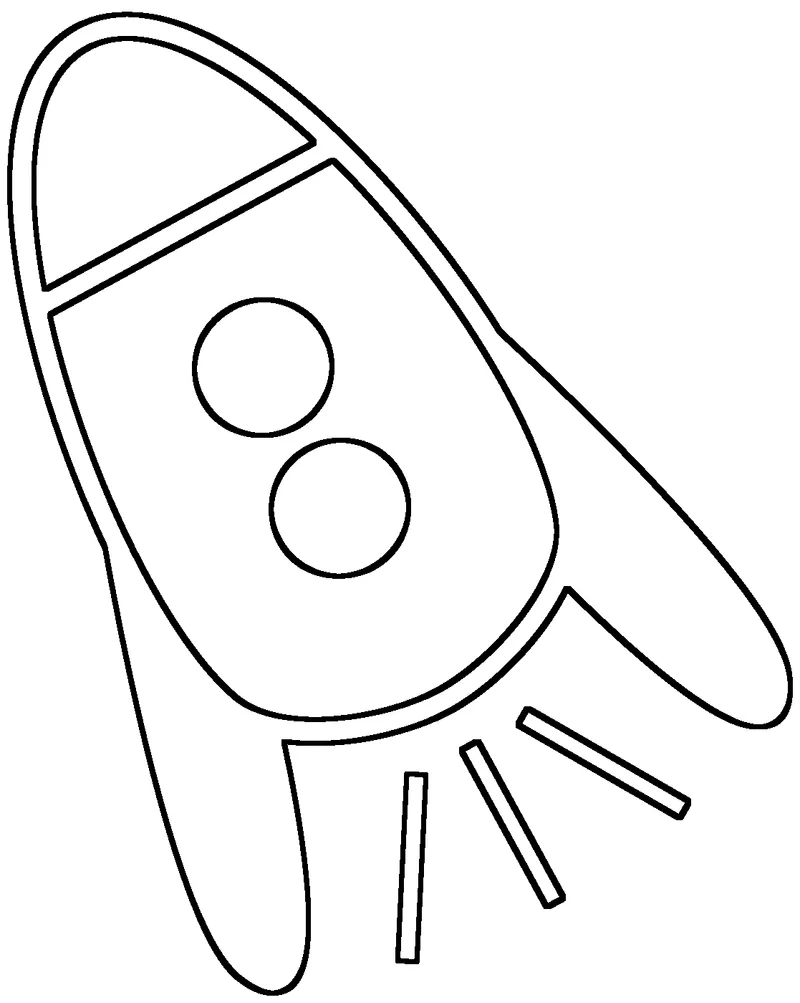
Start at Medium detail with Thick lines. Flat-colour artwork has unambiguous boundaries, so the outline follows the shapes you would expect. This is the easiest case.
-
Diagrams and charts
Start at High detail with Thin lines. Fine rules and small labels survive at High detail. Useful for turning a reference diagram into something a student can annotate and colour.
-
Screenshots
Start at High detail with Thin lines. Text and interface chrome trace cleanly because they are already high contrast. Crop away everything you do not want first.
-
Logos and text art
Letters from fonts and simple logos behave like other flat graphics: Outline, High detail, Thin or Medium lines. Prefer artwork you own. Avoid trademarks you are not allowed to reproduce.
Converting an image from the web
You can paste an image address into the tool instead of choosing a file. Whether it works is not up to us: your browser asks the site hosting the image whether other sites may read its contents, and acts on the answer. Sites that serve images to the public generally allow it; sites that guard their media generally do not.
We will not work around that restriction. Doing so would mean routing your image through a server of ours, and that server would then see every picture anyone converts — which is exactly the arrangement this tool exists to avoid. When a fetch is refused, the reliable path is to save the image to your device and choose it from there.
If you convert images from the web often, the Chrome extension adds a right-click shortcut that opens the editor with the image address already filled in.
Permission still matters. Being able to read an image is not the same as being allowed to use it. Most images on the web are someone's copyrighted work, and converting one into outlines produces a derivative of it. Use images you own or have permission to use.
Fixing common problems
-
Busy screenshot chrome fills the page.
Navigation bars, cookie banners, and sidebars become lines. Crop to the subject before converting, as in the screenshot example above.
-
Text looks too thin to read or colour.
Raise Line thickness one step, or start from a larger crop so the letters fill more of the page.
-
A scan has a gradient or lamp shadow.
Uneven light becomes large grey regions or stray edges. Reshoot or rescan in flat, even light, then try again.
-
A transparent PNG looks wrong.
Transparency is treated as white, so a subject on a transparent background usually converts cleanly. If the subject was pale against transparency, add a contrasting background before converting.
-
An SVG or PDF will not open.
Those formats are not converted directly. Export or screenshot as PNG first. An SVG that is already line art often needs no conversion — you can print it as it is.
-
An image address will not load.
The hosting site blocks other sites from reading it (CORS). Save the image to your device and choose it from there.
-
The file will not open.
It is not PNG, JPEG, or WebP, or it is over 25 MB or 40 megapixels. Save a JPEG or PNG copy, or use a smaller version.
-
You see a "This page is quite dark" warning.
A lot of the page is black. Lower Detail or switch to Outline. Dark pages use a lot of ink and leave little room to color.
-
"Colour it in" leaves gaps.
Some shapes did not close. Raise Detail one step, or try Outline, then check the preview again before printing.
Choosing PDF or PNG
PDF is the right choice when the page is the finished thing. It carries the paper size, and the artwork sits inside a 12 mm margin. The download aims for about 300 DPI when your source is large enough; the DPI readout under Orientation tells you what you'll get. Print at 100% or "Actual size", in black ink only.
PNG is the right choice when the artwork is an ingredient — line art on white, ready for a worksheet or document.
You can also use "Print now". For paper and printer settings, see the guide to printing coloring pages at home.
What happens to your image
Your image is converted inside this browser tab, on your own device.
There is no upload endpoint and no account. The image stays in the tab's
memory until you close the tab. When you open /app, your
browser downloads Our AI Model to your device — about 30 MB the first
time — caches it, and runs it locally if you choose that style. The
image itself never leaves. Ads and analytics never receive your image;
they are separate and consent-based.
Want to check for yourself? Open the Network tab in your browser's developer tools and convert an image. You won't see any request that sends your picture to a server. Details: how the converter works and the privacy policy.
Images you don't own. Converting an image you found online can create a derivative of someone else's work. Prefer images you own or have permission to use. The examples on this page avoid identifiable people.
Frequently asked questions
Which file types can I convert?
PNG, JPEG, and WebP, up to 25 MB and 40 megapixels. Transparent PNGs work, though transparency is treated as white, so a subject on a transparent background converts cleanly.
Can I convert an image by pasting its web address?
Yes, but it only succeeds when the site hosting the image permits other sites to read it. Many do not, and your browser blocks the read. When that happens, save the image to your device and choose it from there.
Can I convert an SVG or a PDF?
Not directly. Export or screenshot it as a PNG first. An SVG that is already line art usually needs no conversion at all — you can print it as it is.
Does it work on scans of drawings?
Very well, and it is one of the best inputs there is. A pencil sketch scanned or photographed in even light converts into clean ink lines at High detail, which is a practical way to turn a child's drawing into a page other children can colour.
Is it free, and do I need an account?
It's free to use, and there's no account to create. Open the converter, choose an image, and download or print your page.
Should I choose A4 or US Letter?
Choose the paper that's in your printer. A4 is standard in most countries, and US Letter is standard in the United States and Canada. On either size, the converter fits the whole drawing inside a 12 mm margin.
Can I color the page on screen?
Yes. When your page appears, select "Colour it in" to open an on-screen coloring canvas. It's optional, and you can still download or print the page as usual.
Photo vs image — which page should I use?
Use this page for drawings, scans, clip art, diagrams, screenshots, and logos. Use photo to coloring page for photographs of pets, places, and objects — that page covers photo technique and per-subject settings.
What about Our AI Model?
It is an alternative style that also runs in your browser. For drawings, clip art, diagrams, and screenshots, Outline usually follows hard edges more literally. Try it if Outline or Sketch looks wrong, and keep whichever page you like. It is not a promise of better results on every image.
Keep reading
- Turn a photo into a coloring page: photographs need different technique.
- Coloring worksheets from your own pictures: diagrams and classroom sets.
- Coloring pages from your family photos: drawing keepsakes and age tips.
- How the converter works: what each setting changes.
- Printing coloring pages at home: paper, margins, and printer settings.
- About the Coloring Page Maker: product overview and comparison.
- Dog coloring pages and cat coloring pages: no image handy? Start with a ready-made page.
More guides
-
Converting photographs
Settings for faces, pets, and landscapes, plus fixes that work.
-
Classroom worksheets
Turning diagrams and reference images into printable tasks.
-
Printing at home
Paper weight, margins, and settings that avoid grey lines.