Turn your own photo into a coloring page
A picture of your own dog, your garden, or the cake from last weekend holds a child's attention in a way a generic printable rarely does. This page shows how to turn an ordinary photo into a clean page you can print, which photos work best, and what to do when the first try looks wrong.
There is no upload endpoint. Your photo is converted in your browser tab and never sent to us.
How to turn a photo into a coloring page
1. Choose your photo
Open the converter and select "Choose an image", or drag a picture onto the page. PNG, JPEG, and WebP files work, up to 25 MB and 40 megapixels. If your photo is in another format, such as HEIC, save a JPEG copy first. You can also type a link into "Paste an image address" and select "Load image", although some websites block this. More on that below.
2. Pick a style, detail, and line thickness
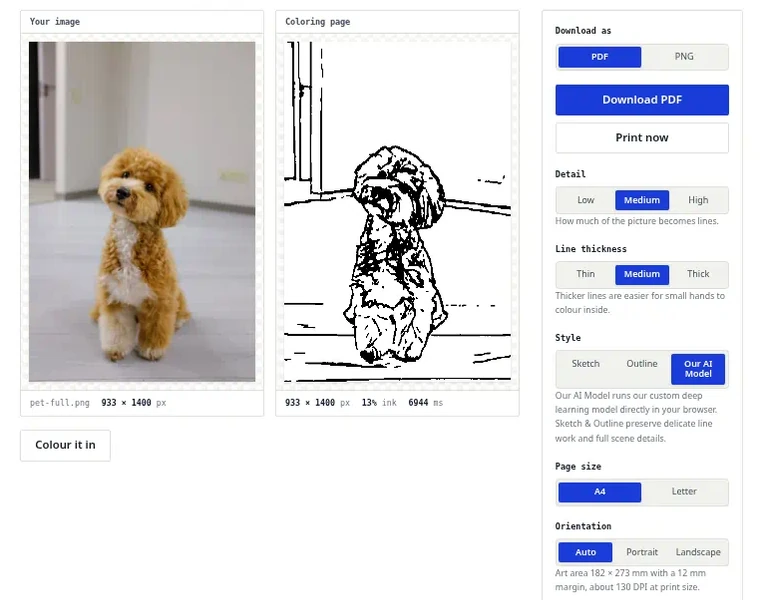
Style decides how lines are found. Sketch draws strokes where the picture is darker than its surroundings, so it can look hand-drawn. Outline traces edges where brightness changes sharply. Our AI Model is a third option that also runs in your browser. Detail decides how much of the picture becomes lines. Line thickness decides how bold those lines print. As the converter puts it, "Thicker lines are easier for small hands to colour inside." Thick suits young children and crayons, and Thin suits fine pens and older hands. The converter starts at Sketch, High detail, and Thin lines. Many photos look better after one or two changes, and the sections below suggest which.
3. Check the preview
The preview shows how much of the page is ink. If a lot of the page is black, you'll see a "This page is quite dark" warning. Lower Detail or switch to Outline, then check the preview again.
4. Choose your paper and print
Pick A4 or Letter under "Page size". Leave Orientation on Auto to follow the shape of your photo, or choose Portrait or Landscape yourself. Then, under "Download as", pick PDF or PNG and select "Download PDF" or "Download PNG". If you'd rather print straight away, select "Print now".
Worked examples
Each example below is a real photo from Pexels, converted with the converter's own code at the settings in the caption, with no retouching.
Sunflowers: why this one works
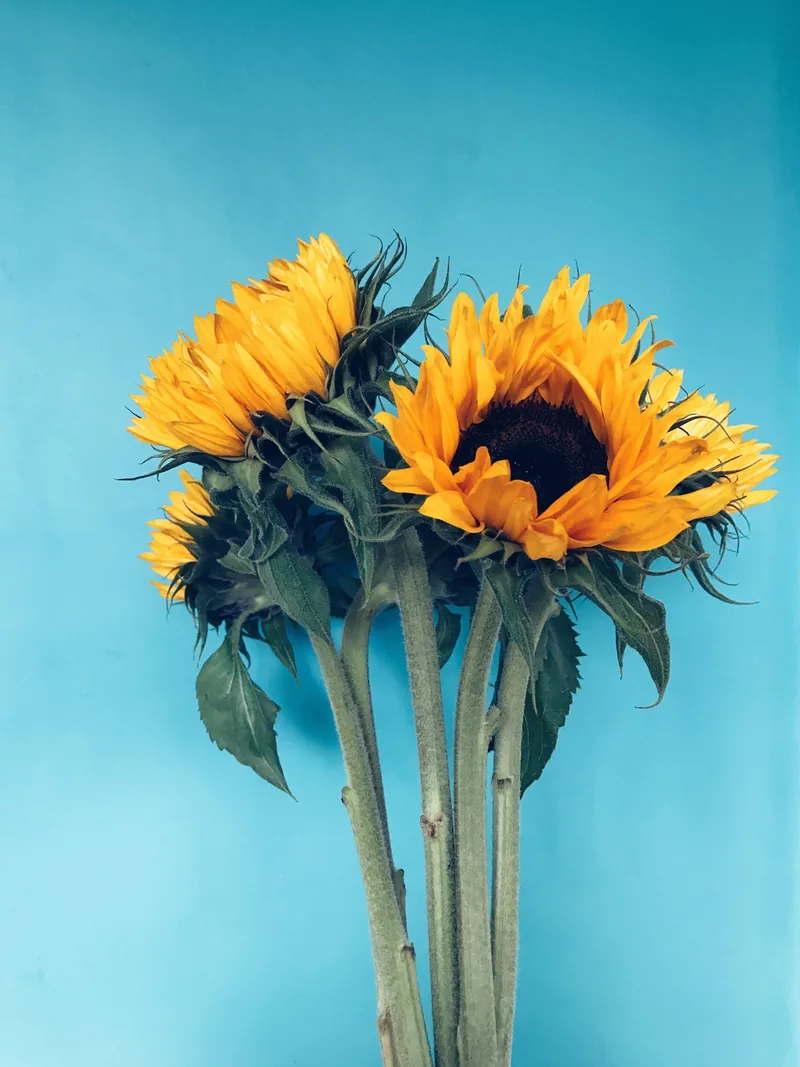
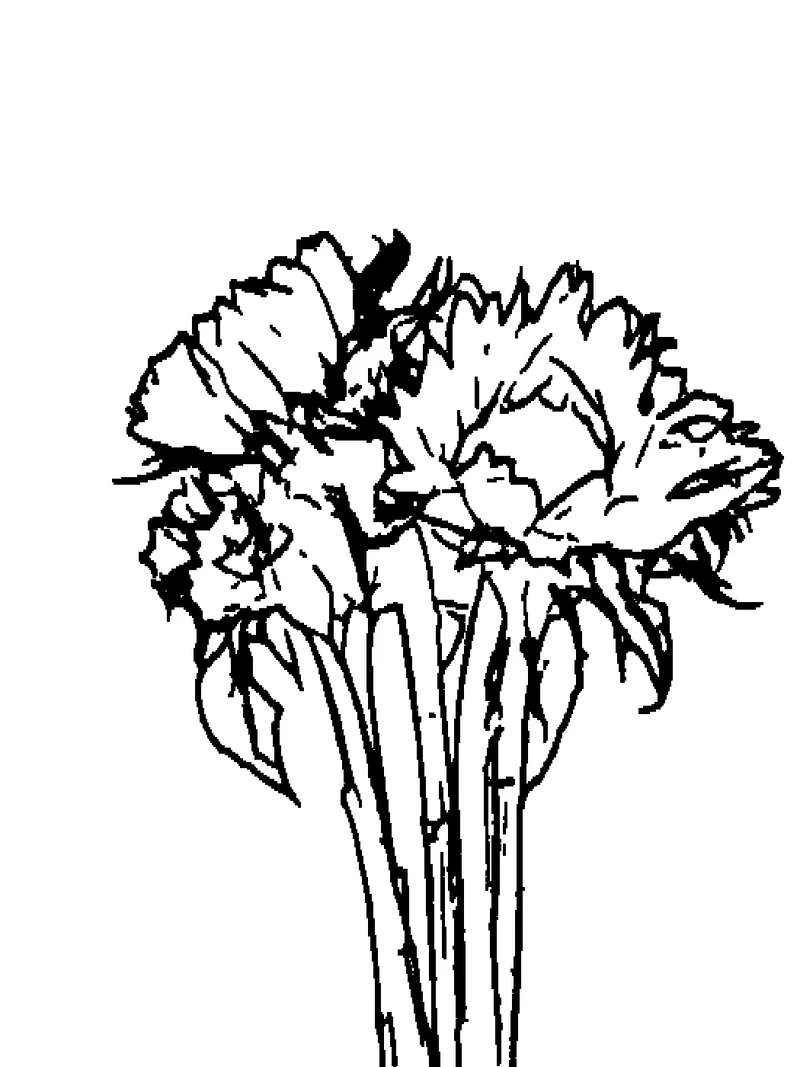
Look back at the sunflowers at the top of the page. There's a single subject, a plain wall behind it, and soft, even light. Almost every line on the page belongs to the flowers, leaves, or stems, so almost every line is worth coloring. Our AI Model closed the petals and leaves into shapes a child can fill. With Outline at the same detail, the petals broke into many short strokes, about 8% ink with Medium lines.
A lighthouse on a lawn: grass is texture
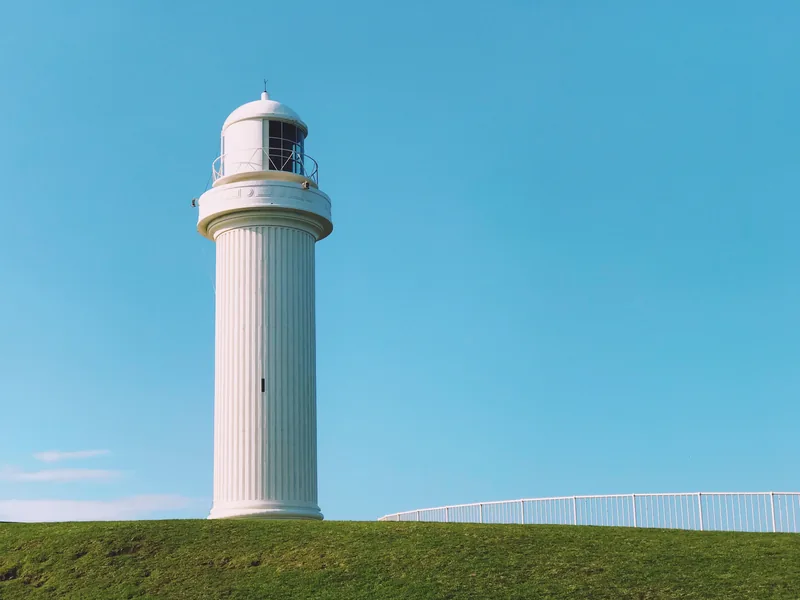
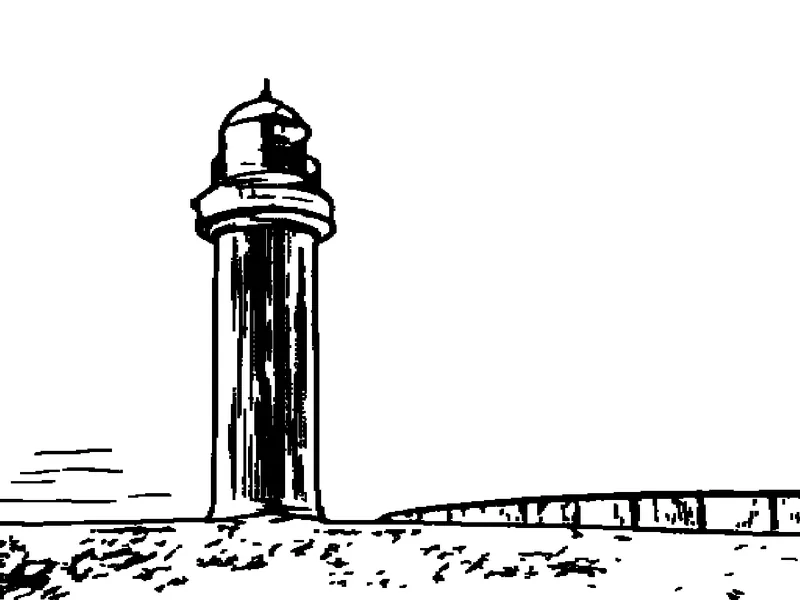
The lighthouse is the easy part: a white tower against a plain sky. The short lawn is harder, because every blade of grass is a small change in brightness. With Outline at Medium detail, the lawn became a dense band of speckles, about 9% ink with Medium lines. Our AI Model kept the tower and the railing as clean lines and left only scattered marks in the grass, though it turned the shady side of the ribbed tower into dark streaks. For younger kids, crop most of the lawn away.
A dog: crop out the floor
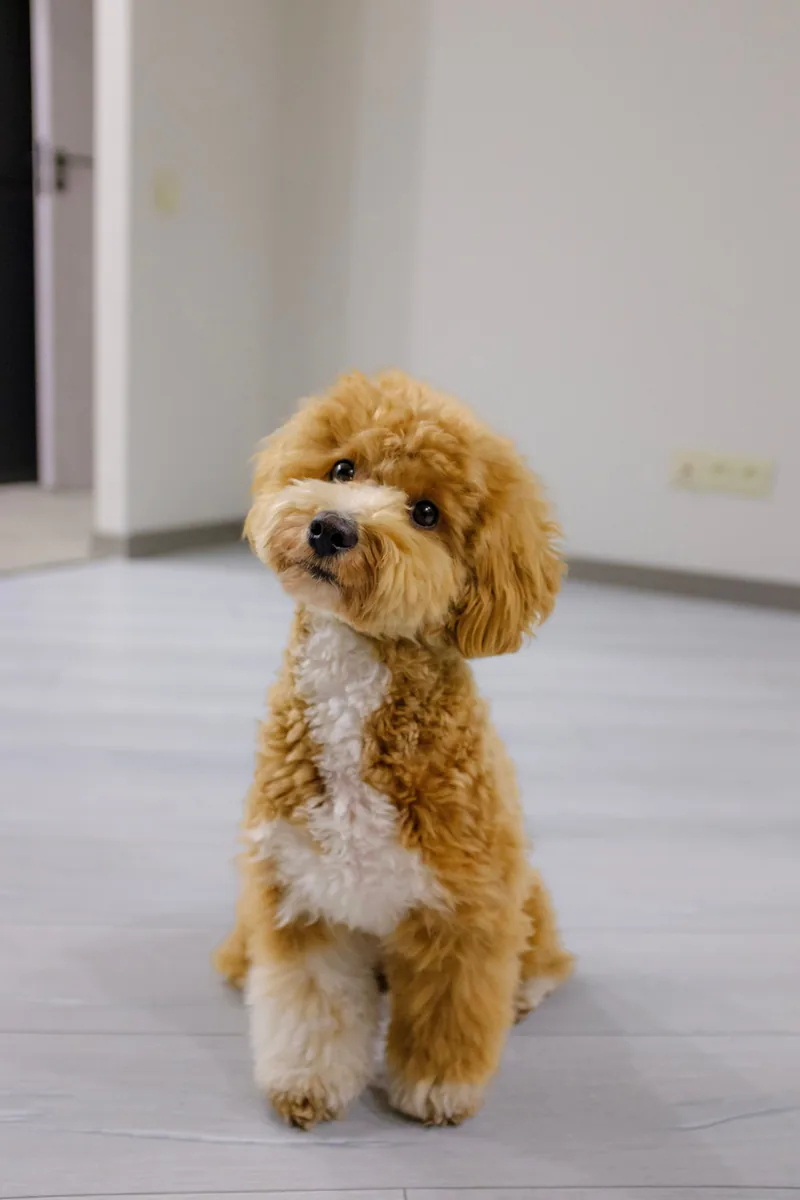
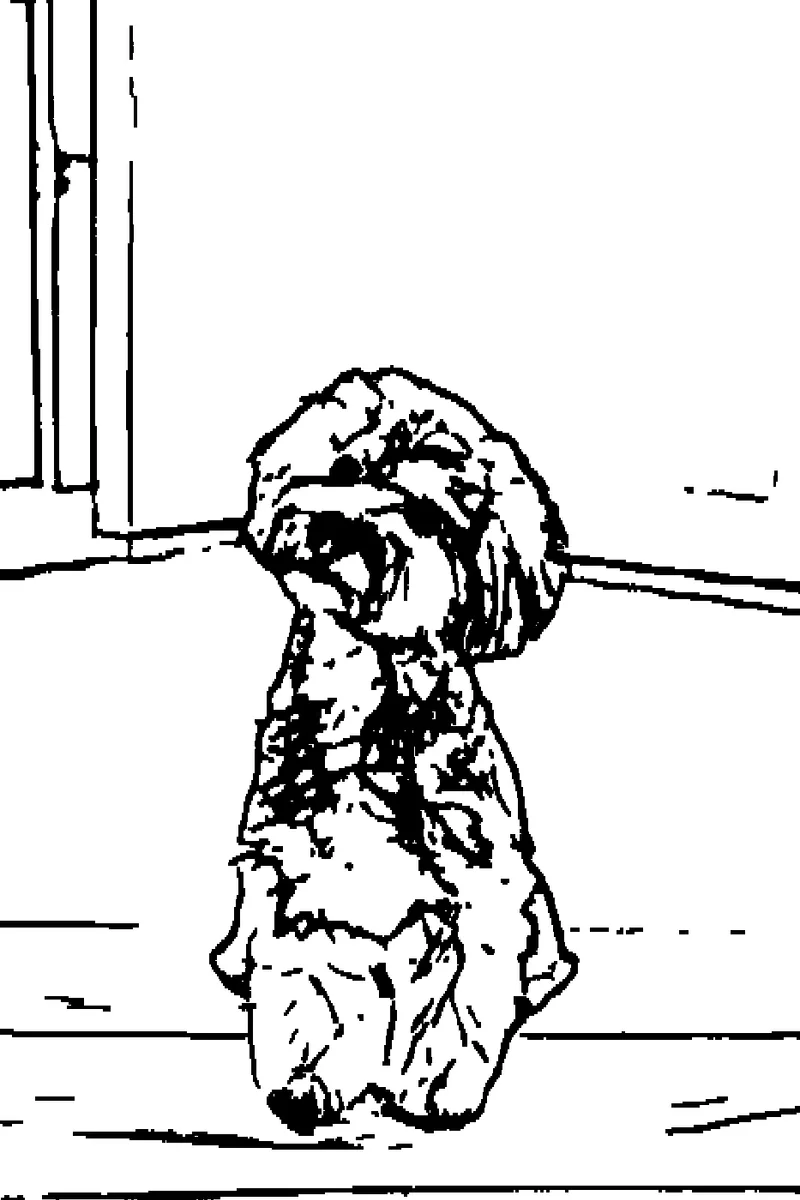
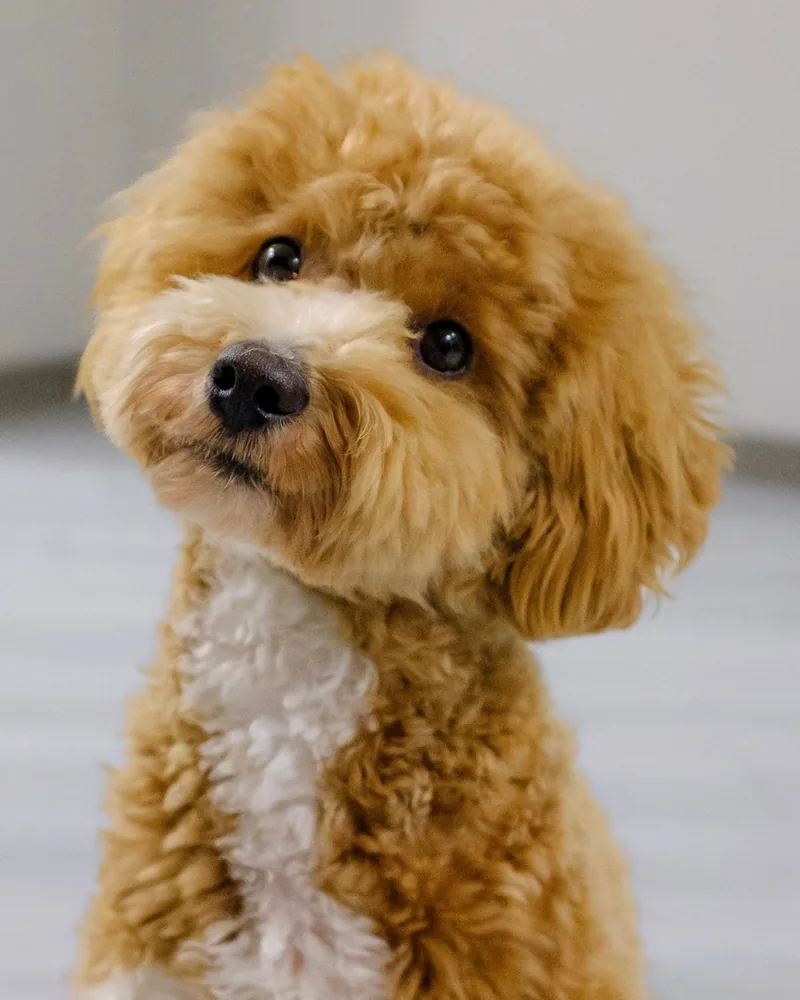
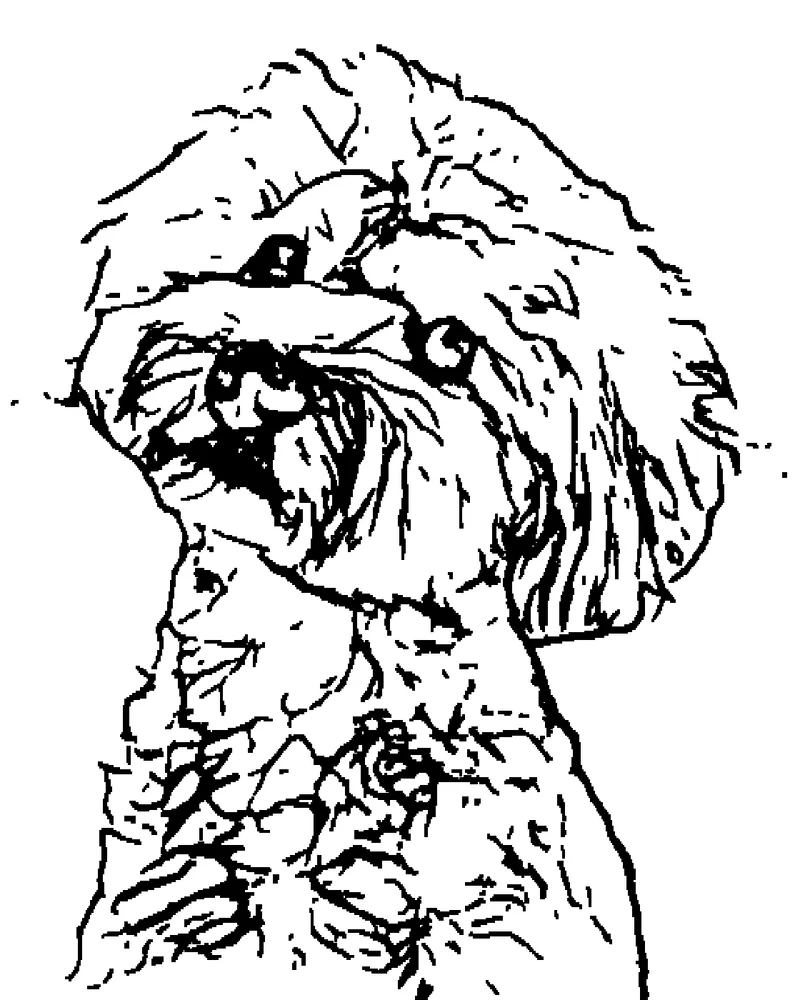
This photo has a plain wall and a light floor, so the background isn't busy. Even so, the full photo picks up stray lines. The door frame, the line where the wall meets the floor, and the seams in the floor all become long straight lines, and the dog fills only part of the page. Cropping to the head and chest removes almost all of them and makes the face big enough to color. The page uses more ink after the crop, about 17% instead of 13%, because the curly fur now fills it, but the shapes are much bigger.
Choosing a photo that converts well
Sketch and Outline turn your photo to grayscale first, so they see only brightness, not color. They draw a line where brightness changes sharply. That works beautifully for a subject against a plain background. It works badly for a lawn, a hedge, or a patterned rug, because each of those contains thousands of small changes that are real but not meaningful.
-
Converts well
- Background: a plain wall, sky, bare table, or softly blurred background
- Light: even daylight or open shade
- Subject: one subject filling a good share of the frame
- Sharpness: in focus where it matters
- File: the original photo
-
Converts badly
- Background: grass, leaves, gravel, patterned wallpaper, or crowds
- Light: low light, or strong sun that throws half the subject into shadow
- Subject: many small subjects, or one far away
- Sharpness: blurry, shaken, or out of focus
- File: a screenshot, or a copy re-saved through messaging apps
Settings by subject
These are starting points, not rules. One step up or down is normal.
Pets
Start at Medium detail with Medium or Thick lines. Fur is texture, and Sketch and Outline turn texture into scribbles, so don't go higher than you need. For the curly-haired dog above, Our AI Model gave a much cleaner page than Outline. A pet on a floor or sofa converts more cleanly than one in the garden, but crop out floor edges and furniture lines, as in the dog example above.
Places and buildings
Start at Medium detail with Thin or Medium lines. High detail works for clean surfaces like painted walls and glass. Grass, leaves, brick, and stone turn into speckles. Outline speckled the lighthouse lawn above even at Medium. If that happens, drop a step or try Our AI Model. Wide scenes usually suit Landscape orientation.
Objects
Low or Medium detail, Medium or Thick lines. A single object on a plain background of a different brightness gives the cleanest page of all, and thicker lines leave big, satisfying areas to fill. The sunflowers at the top of this page were made with Our AI Model at Medium detail and Medium lines.
Photos of people
You can convert photos of people too. Only use photos of people with their permission, and a parent's permission for children.
Drawings and screenshots
A child's drawing, clip art, or a screenshot behaves differently from a photo. See how to convert drawings, screenshots, and logos.
When to try Our AI Model
If neither Sketch nor Outline looks right, try Our AI Model. When you open the converter, your browser starts downloading the model from this site in the background, about 30 MB the first time, including the software that runs it, and keeps a copy for next time. You can pick it as soon as the download finishes. It won't suit every photo. On the photos on this page it gave the cleanest pages, but it also traced the door frame and the floor behind the dog, so compare it with Sketch and Outline and keep whichever page you like best.
Fixing common problems
-
The page looks like static or scribbles.
Too many small edges made it into the drawing. Lower Detail one step, crop out the background, or try another style.
-
The page looks empty, or the outlines are broken.
The photo doesn't have enough contrast. Raise Detail. If that doesn't help, brighten the photo and raise its contrast in your usual photo editor, then try again.
-
You see a "This page is quite dark" warning.
A lot of the page is black. Lower Detail or switch to Outline. Dark pages use a lot of ink and leave little room to color.
-
Long straight lines cross the page.
Floor edges, table edges, or a horizon are being traced. Crop them out before converting, as in the dog example.
-
An image address won't load.
The site hosting the picture doesn't let other sites read it. Save the picture to your device and choose it from there.
-
The file won't open.
It isn't PNG, JPEG, or WebP, or it's over 25 MB or 40 megapixels. Save a JPEG copy, or use a smaller version of the photo.
-
The DPI number under Orientation is low.
The photo is small or heavily compressed. Use the original photo, not a screenshot or a copy from a messaging app. The converter never enlarges a small photo.
Printing your page
Choose A4 or Letter to match the paper in your printer. The converter fits the whole photo on the page inside a 12 mm margin and never crops it, so if you want to zoom in, crop before you convert. The download aims for about 300 DPI when your photo is large enough. The DPI readout under Orientation tells you what you'll get. For example, the 933 × 1400 px dog photo on A4 reads "Art area 182 × 273 mm with a 12 mm margin, about 130 DPI at print size." That's well under 300, so use a larger original if you have one.
For printing, download the PDF. It's sized for A4 or US Letter, so print it at 100% or "Actual size", in black ink only. Download the PNG if you want to drop the drawing into a document or another app. For paper, ink, and printer settings, see the guide to printing coloring pages at home.
What happens to your photo
Your photo is converted inside this browser tab, on your own device. This site has no upload endpoint, so there is nowhere for your picture to be sent, and there's no account to create. Your photo stays in the tab's memory until you close the tab. When you open the converter, the model behind Our AI Model downloads from this site to your device in the background and is kept there. Your photo still never leaves. The ads and analytics on this site never receive your image.
Want to check for yourself? Open your browser's developer tools, go to the Network tab, and convert a photo. You won't see any request that sends your picture to a server. For the technical details, see how the converter works and the privacy policy.
Ideas for photo pages
- Your pet on a birthday card or the fridge. More family ideas: coloring pages from your family photos.
- A place from a trip, like a lighthouse, a bridge, or the cottage you stayed in. Color it in and send it as a postcard.
- A favorite toy or the family car, photographed on a plain floor.
- A class-trip photo of a landmark or a plant, turned into a worksheet. See coloring worksheets from your own pictures.
Photos you didn't take. If someone else took the photo, turning it into a coloring page can create a derivative of their work. Converting your own photos for personal use is straightforward. Anything you plan to share, publish, or sell needs permission. Use images you own or have permission to use.
Frequently asked questions
Which photos make the best coloring pages?
Photos with one clear subject, even light, and a plain background. A dog sitting by a wall works better than a dog in long grass, and a vase on a bare table works better than one on a patterned cloth. Sharpness matters more than size: a sharp photo beats a large, blurry one.
Are my photos uploaded?
No. Your photo is converted inside your browser tab, on your own device. This site has no upload endpoint, so there is nowhere for the picture to be sent. The ads and analytics on this site never receive your image.
Can I use a photo from my phone?
Yes. Open the converter in your phone's web browser and follow the same steps: choose a picture from your photos, check the preview, and download your page. If the file won't open, save a JPEG copy and choose that instead.
Is it free, and do I need an account?
It's free to use, and there's no account to create. Open the converter, choose a photo, and download or print your page.
Should I choose A4 or US Letter?
Choose the paper that's in your printer. A4 is standard in most countries, and US Letter is standard in the United States and Canada. On either size, the converter fits the whole drawing inside a 12 mm margin.
Should I download a PDF or a PNG?
Download the PDF for printing. It's sized for A4 or US Letter, so it prints at the right scale. Download the PNG if you want to put the drawing into a document, a slide, or another app. You can also skip the download and use Print now.
Why won't an image address load?
The website hosting the picture decides whether other sites may read it, and many say no. When that happens, save the picture to your device and choose it from there.
Can I color the page on screen?
Yes. When your page appears, select "Colour it in" to open an on-screen coloring canvas. It's optional, and you can still download or print the page as usual.
Keep reading
- Converting drawings, screenshots, and logos: why they behave differently from photos.
- Coloring pages from your family photos: matching the page to your child's age.
- Coloring worksheets from your own pictures: classroom uses and printing a class set.
- How the converter works: what each setting changes.
- Printing coloring pages at home: paper, margins, and printer settings.
- Dog coloring pages and cat coloring pages: no photo handy? Start with a ready-made page.
More guides
-
Converting non-photographic images
Drawings, clip art, logos, and screenshots behave differently from photographs.
-
Coloring pages for parents
Making activity sheets from family pictures, and keeping them private.
-
Printing at home
Paper weight, margins, and settings that avoid grey lines.